 FreeVideo AI
Create a cinematic story
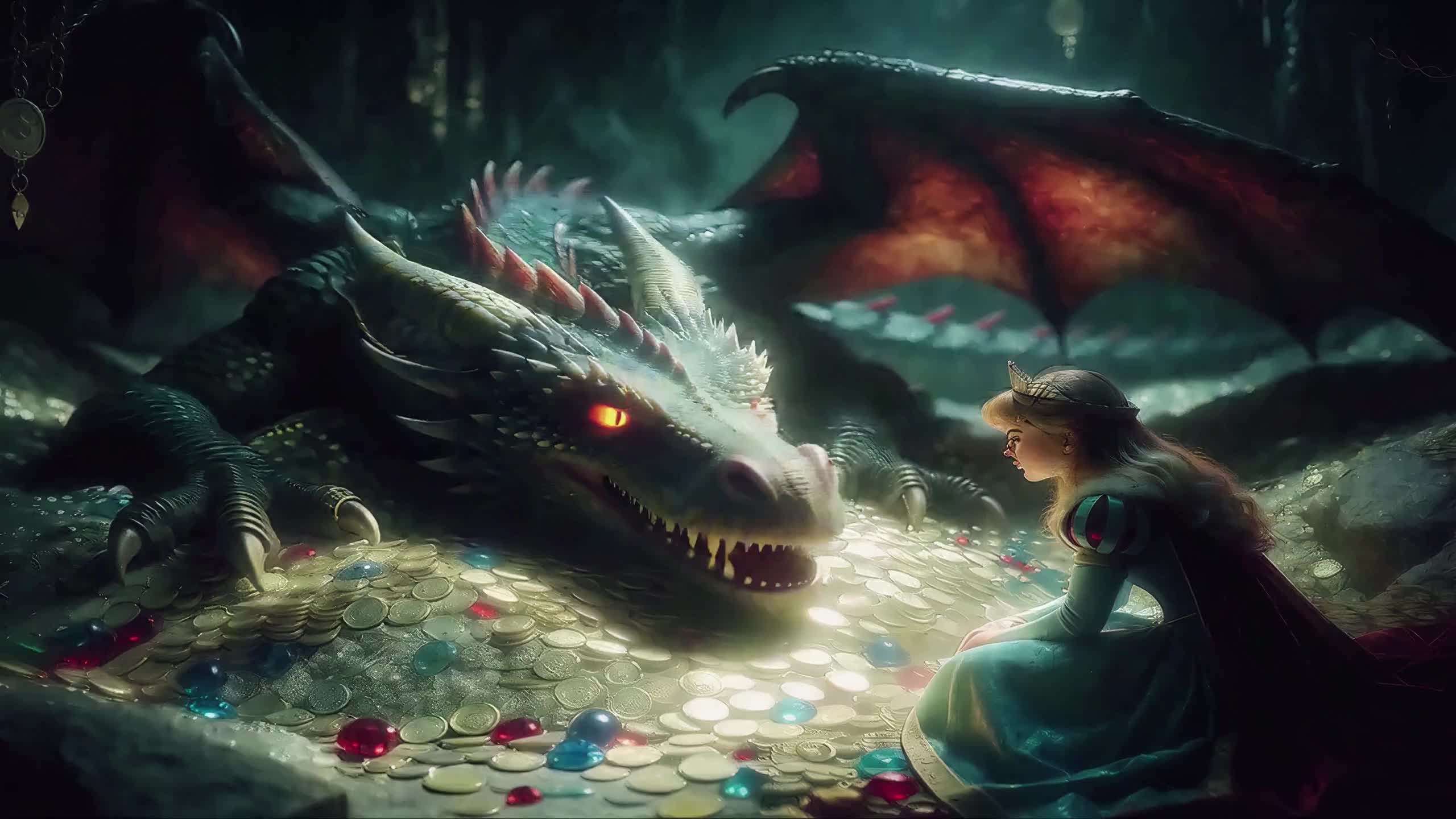
A fantasy scene with a continuous push from a two-shot to a close-up.
Explore this workflowCreate videos from a prompt, a photo or two frames with MiniMax H3. Explore cinematic ideas, animate your images and shape your next story in one creative workspace.
Preview and download your completed videos here.
Set your controls, then create
AI generation runs on our ComfyUI service. Prompts and reference images are uploaded for processing. Sign-in and sufficient credits are required.
Generation is subject to available credits, service capacity and queue times.
ONE WORKSPACE. MORE WAYS TO CREATE.
Start with an idea, a photograph, or a pair of frames. Choose the workflow that fits your story.
 MiniMax H3
Explore all three video workflows in one workspace.
Try it now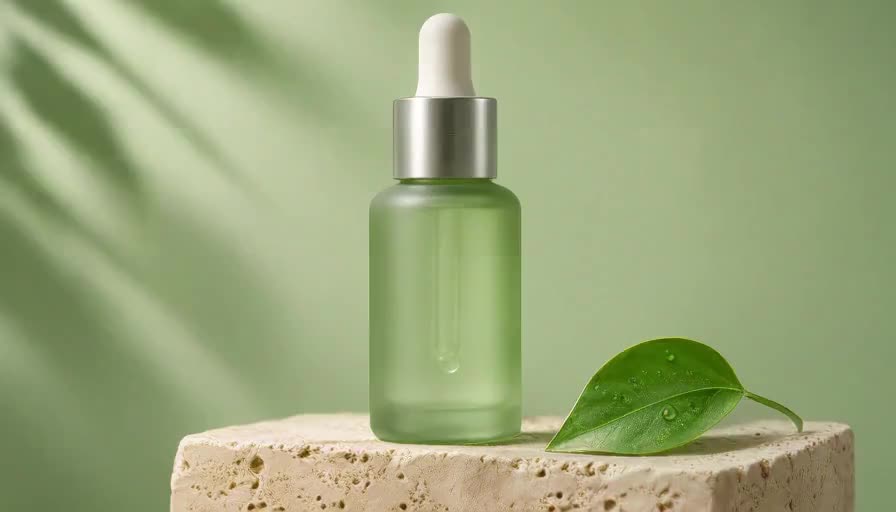 MiniMax H3
Describe a subject, an action and a camera move. Bring your idea to life.
Try it now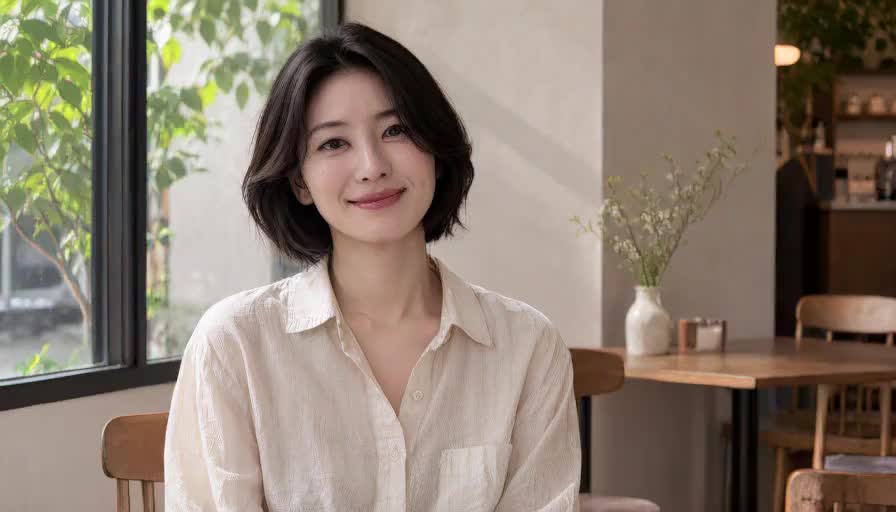 MiniMax H3
Start with a photo and guide the movement, atmosphere and camera.
Try it now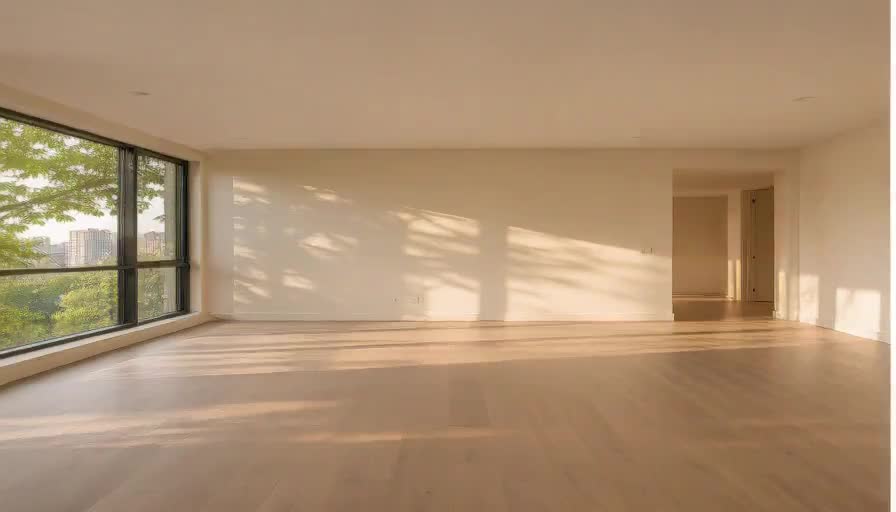 MiniMax H3
Connect an opening and ending image with an AI-generated transition.
Try it nowAll three generation modes connect to our ComfyUI workflows. Duration, credits and availability are shown in the studio.
FROM YOUR FIRST IDEA TO A MOVING STORY
Actual outputs from our H3 workflows. Explore the motion, framing and details, then try a direction of your own. AI artifacts may occur.
A fantasy scene with a continuous push from a two-shot to a close-up.
Explore this workflowExplore a subtle blink, a natural smile and gentle character motion.
Explore this workflowExperiment with camera movement and studio lighting around your product.
Explore this workflowSee an empty room transform into a furnished interior.
Explore this workflow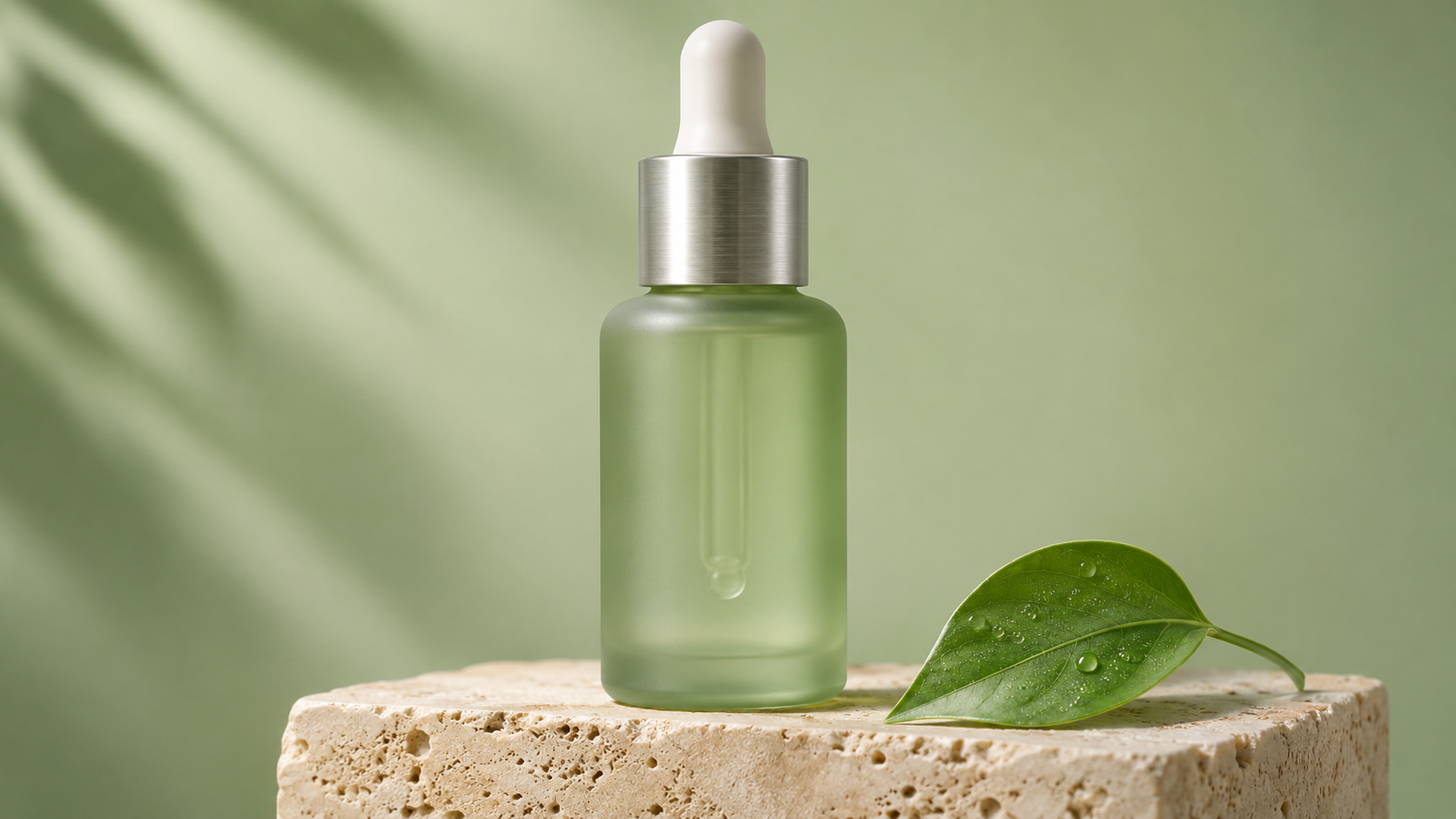
Start from a clean product image. Guide lighting and camera movement with a focused brief. Reference still, not a video.
Explore this workflow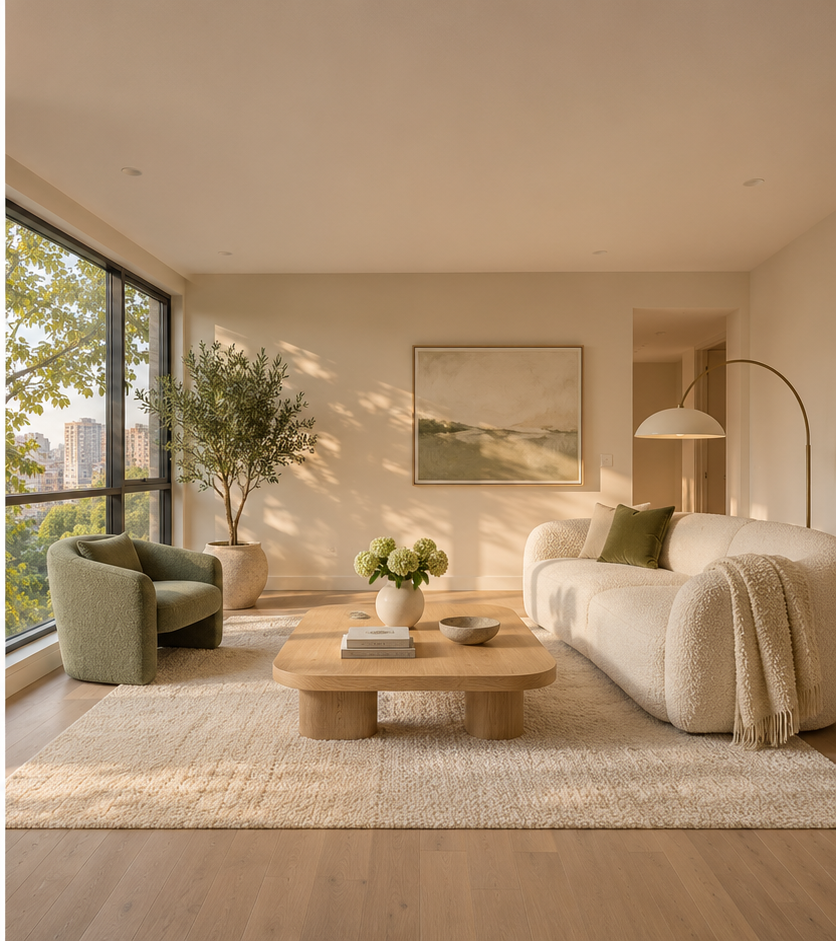
Keep the perspective consistent and use two frames to guide your transition. Reference still, not a video.
Explore this workflowOne studio for written ideas, image animation and transitions between frames.
Describe a subject, an action and a camera move. Bring your idea to life.
Open tool ANIMATEStart with a photo and guide the movement, atmosphere and camera.
Open tool CONNECTConnect an opening and ending image with an AI-generated transition.
Open toolClear controls, real examples and three practical ways to turn your ideas into motion.
Text, a single reference image, or a pair of first and last frames.
Track queued and running tasks without submitting the same request again.
Create landscape or portrait clips for your next story.
Use your Google account to access your studio and credit balance.
Watch actual H3 outputs before planning your own creative direction.
Preview the completed clip and save a copy to your device.
Choose a workflow, set your direction, then generate and download.
Write a prompt, animate an image, or upload your first and last frames.
Sign in, choose duration and format, then follow your task in the queue.
Save your result and refine the prompt for your next iteration.
Video generation uses account credits. Welcome credits, amounts and expiry depend on site settings. No card is required by the current generation flow, but you must sign in and have sufficient credits. Unlimited free generation is not promised.
The site uses a credit balance, not a fixed daily quota. Welcome credits are not automatically a daily allowance. Check your account for actual grants and expiry.
The current H3 workflow and download flow do not add a brand watermark. The model may still generate text or marks in the image; completely mark-free results are not guaranteed.
Use image-to-video with a clear, unobstructed portrait. Start with subtle movements such as blinking or smiling, short clips and a fixed camera. Large turns and occlusions may change the face. There is no cross-task character lock.
Describe a specific action and its pace instead of repeating the appearance: for example, a gentle blink and smile with a fixed camera. Separate subject movement from camera movement. Identical start and end images can constrain motion.
Complex actions, fast motion, occlusions and large viewpoint changes can cause artifacts. Try simpler actions, shorter clips and clearer references. Prompts cannot guarantee distortion-free output.
Use a clean product image with a clear silhouette and room around it. Try keeping the product still while the camera slowly pushes in or light sweeps across it. The site generates footage, not a finished ad with script, captions and voice-over.
Reduce rotation, occlusion and large movements. H3 does not provide pixel-perfect product or text locking. Add critical text in editing and check each frame. Generated footage is not proof of real product performance.
Specify a stationary subject and one camera move, such as a slow push-in without cuts. Test pans, orbits and push-ins separately. Camera movement is prompted, not controlled by a precise path editor.
Both English and Chinese can be entered; results require testing. For text-to-video, describe subject, action, setting, camera and light. For image-to-video, focus on motion. The current limit is 2,000 characters.
Select first-and-last-frame mode, upload the start and end images and describe the transition. PNG, JPEG and WebP are supported, up to 10 MB each. Similar subjects and framing are easier starting points. Frames are processed by the model, not replayed pixel for pixel.
Large differences between inputs or conflicting viewpoints can cause warping. Try the same subject in similar compositions and one continuous action, or split the sequence. Exact intermediate and final frames are not guaranteed.
The current single-task options are 5, 10 and 15 seconds. H3 rounds frame counts, so file duration can vary slightly. Generate separate shots and edit them together. Reusing the last frame can help continuity but does not guarantee a seamless join. One-click extension is not available.
The current workflow produces silent video. Audio generation, voice-over and lip sync are not connected. You can add licensed audio and captions in an editor after downloading.
Landscape and portrait options output 896×512 and 512×896 MP4 videos. The UI labels these as 16:9 and 9:16, but the pixel dimensions are approximate. Native 1080p and 4K output are not available.
Check the destination platform rules, AI disclosure requirements, model license and rights to uploaded material. The site does not provide a blanket commercial license or guarantee publishing, monetization or ad approval.
Speed depends on GPU load, queue length, duration and content. There is no guaranteed completion time. Check the studio or task history before submitting again; a long wait does not itself mean failure.
Current costs are 6 credits for text-to-video and 8 for image-to-video or first-and-last-frame. Refund logic runs when a task is explicitly recorded as failed with a linked credit charge. Closing the page, a timeout or disliking a successful result does not automatically trigger a refund.
There is no automatic free retry for an unsatisfactory successful result. A new submission costs credits again. Start with short clips and simple actions, and review inputs before submitting.
Only upload material you have permission to use, with any necessary consent. Inputs are sent to the connected ComfyUI service. There is no uniform automatic deletion period promised here. Avoid private or confidential material unsuitable for that service.